Engineers are starting to use AI the same way they use spreadsheets: not as a replacement for judgment, but as a way to make small tools faster. The useful question is no longer "can AI write text?" It is "can this help me turn a product manual into a diagnostic checklist, convert field data into a spreadsheet, draft a PowerPoint, explore a 3D concept, clean a CSV, or build a small tool I can verify?"
The trick is keeping the boundary clean. Personal experiments should stay personal. Work files, client data, unreleased drawings, project specs, and company procedures should not be copied into a side project unless your employer explicitly allows it. Local tools make that boundary easier to control, but they do not remove the need for professional judgment.
Affiliate disclosure: Some hardware links below are Amazon affiliate links. We may earn from qualifying purchases. Software links point to official project or vendor pages.
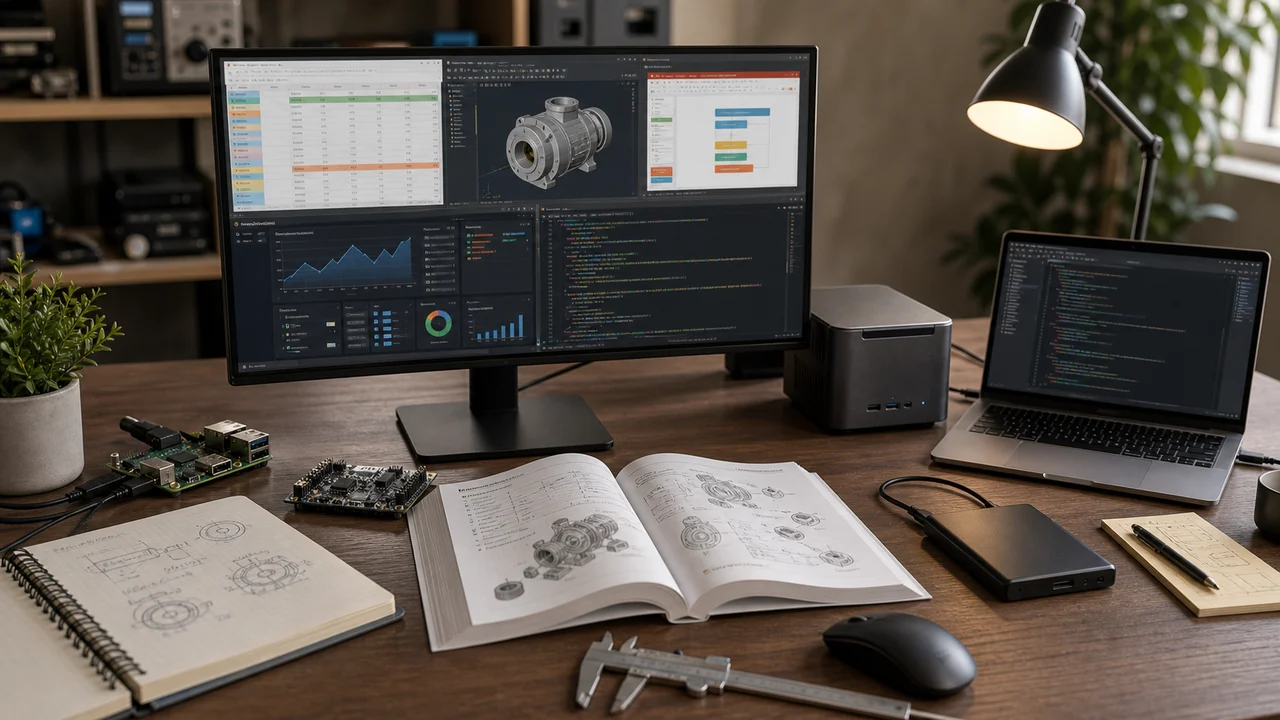
What "local AI" means in practice
For this article, local AI means you run the model or interface on your own computer instead of sending every prompt to a hosted service. The common beginner-friendly stack is:
- Ollama for running local language models from the command line or local API.
- LM Studio for a desktop app experience and local server mode.
- Open WebUI for a self-hosted chat interface that can connect to local model backends.
- AI coding tools for turning rough ideas into HTML, JavaScript, Python, Excel formulas, and scripts you can inspect and test.
Cloud AI vs local AI: use the right tool
Local AI is good when you want privacy control, offline experiments, a local API, or a hobby tool that does not need the best frontier model. Cloud AI is better when you need stronger reasoning, web research, better document generation, large context, image understanding, or agent-style work across websites and files.
| Tool type | Best engineering use | Watch out for |
|---|---|---|
| ChatGPT | Deep research, brainstorming, data analysis, agent-style web tasks, slide/spreadsheet drafts, and broad technical Q&A | Verify sources, calculations, and any action it takes on websites |
| Claude | Long documents, product manuals, writing, structured reasoning, code, Excel/PowerPoint/Word/PDF file creation, and file cleanup | Do not upload sensitive company files without approval |
| Local models | Private examples, local scripts, small assistants, internal notes that are allowed on your machine, and always-on hobby tools | Smaller models can be weaker; hardware limits matter |
| Coding agents | Small web tools, data cleaning scripts, dashboards, calculators, automation glue, and tests | You still own the code review and validation |
For current capabilities, see Anthropic’s notes on creating Excel, PowerPoint, Word, and PDF files with Claude, OpenAI’s deep research guide, and OpenAI’s ChatGPT agent announcement.
What engineers can actually use AI for
- Manual Q&A: upload a public product manual or a non-confidential manual you are allowed to use, then ask for troubleshooting paths, fault trees, maintenance intervals, and diagnostic questions.
- Excel and PowerPoint: ask for a workbook structure, formulas, charts, and a draft slide deck from non-sensitive data. Then inspect formulas and formatting yourself.
- Power BI and dashboards: have AI propose measures, table relationships, chart layouts, or a dashboard outline before you build it in the real tool.
- 3D and design ideation: use AI to describe a concept, generate parametric script ideas, organize requirements, or produce a rough prototype workflow. Treat output as a starting point, not sealed engineering design.
- Code helpers: build calculators, CSV cleaners, report formatters, unit converters, and small browser tools that you can test with hand calculations.
- Research: use deep research for broad literature, vendor, standard, or market scans, then check primary sources before making decisions.
Three setup tiers
| Tier | What you need | Good for |
|---|---|---|
| Low friction | A normal laptop, a ChatGPT or Claude subscription, and a habit of redacting data | Manual Q&A, document drafts, research, Excel/PowerPoint help, and small code snippets |
| Medium local | 16-32GB RAM laptop or Mac mini, fast SSD, LM Studio or Ollama | Local chat, simple coding helpers, private toy examples, and learning how models run |
| High local | 64GB+ system RAM or 16GB+ GPU VRAM, larger SSD, backup plan | Larger local models, longer context, faster inference, and more serious home-lab workflows |
LM Studio recommends 16GB+ RAM and at least 4GB dedicated VRAM on Windows, while Ollama documents GPU support and VRAM-aware scheduling. Those are starting points, not magic numbers: larger models, longer context windows, and parallel sessions use more memory.
Good engineering side projects
The best projects are small enough to verify by hand and useful enough that you will actually open them again.
- Unit conversion checkers for flow, pressure, energy, load, stress, or electrical quantities.
- Personal reference dashboards that organize open standards links, unit notes, checklists, or non-confidential project lessons.
- Field note templates that turn rough notes into a consistent personal format without using confidential project details.
- CSV cleanup scripts for personal sensor data, lab data, or hobby measurements.
- Small browser tools for open-channel flow, beam reactions, voltage drop, psychrometric lookups, or pump affinity-law checks.
Local hardware that makes sense
You do not need a rack of equipment. Start with the machine you already own, then add hardware only when you know what problem you are solving.
| Use case | Good fit | Notes |
|---|---|---|
| Light coding, browser dashboards, small scripts | Existing laptop or desktop | Best starting point. No new purchase required. |
| Always-on local services | Raspberry Pi 5 8GB | Good for dashboards, small APIs, and learning Linux. |
| Portable model files and datasets | Samsung T9 2TB portable SSD | Fast external storage for models, code, and backups. |
| Shared home storage and backups | Synology DS224+ NAS | Useful once projects and files start multiplying. |
| Comfortable long sessions | Logitech MX Keys S and MX Master 3S | Input comfort matters when you spend evenings debugging. |
Prompt patterns that work
Good prompts describe the output, source boundaries, checks, and uncertainty. You do not need magic wording. You need clear constraints.
- Manual diagnosis: "Using only this uploaded manual, make a troubleshooting checklist for symptom X. Quote section names or page references when possible. If the manual does not say, say unknown."
- Spreadsheet help: "Create a workbook outline for this CSV with assumptions, formulas to inspect, charts, and validation checks. Do not invent missing fields."
- Small tool: "Build a single-page calculator for this open formula. Include unit inputs, range checks, and three test cases I can verify by hand."
- Design exploration: "Generate three concept approaches, list constraints, failure modes, materials questions, and what a licensed engineer would still need to verify."
Work/home separation rules
A simple rule works: if the file would make you nervous on a personal laptop, do not use it in a personal AI workflow. For side projects, use public examples, fictional values, personal study notes, or open data.
- Do not paste client drawings, employer specs, proprietary calculations, internal emails, or confidential meeting notes into personal tools.
- Keep personal code in a personal repository and work code in the company-approved system.
- Use fictional project names and scrub identifying details when building example tools.
- Assume anything connected to your employer must follow employer policy, even if the model runs locally.
Where this connects to FE and PE prep
Local AI is useful for side projects, but exam prep is one place where building your own tool usually wastes the time you meant to spend studying. The hard part is not making a quiz page. The hard part is getting exam-aligned questions, correct answers, realistic distractors, calculator walkthroughs, diagrams, topic coverage, and performance tracking to all agree with each other.
That is what the FE Test Prep study app is built to handle: timed sessions, topic analytics, calculator function filtering, diagrammed problems, and FE/PE-style practice without turning your study plan into another software project.
Related engineering tech guides
Engineering Home Lab • Best Computers for Engineers • Bluebeam vs AutoCAD vs Revit vs Procore • Engineering Laptops
Turn Practice Data Into a Study Plan
FE Test Prep gives you timed FE and PE questions, calculator walkthroughs, diagrams, and topic analytics so you can stop guessing what to study next.